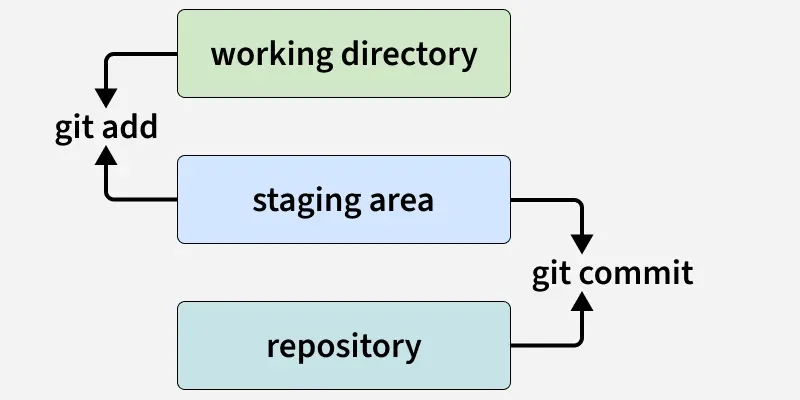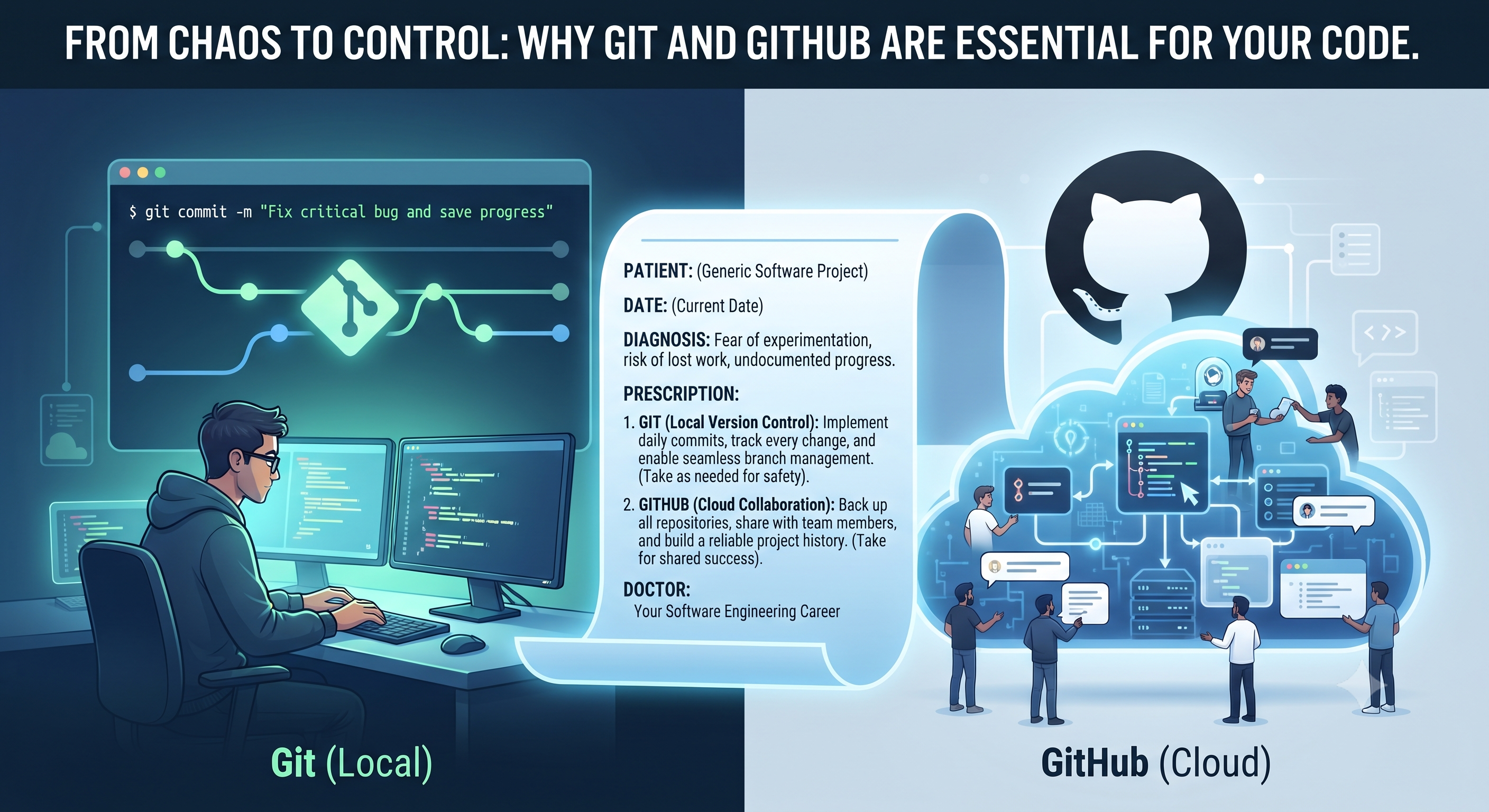

In our previous blog, we looked at why version control is like a doctor's prescription for your code—saving you from working entirely from memory and letting you experiment fearlessly.
Now that you know why you need Git, it is time to get your hands dirty and set it up on your local machine. Don't worry, it only takes a few minutes!
Step 1: Install Git
Depending on your operating system, the installation process is straightforward:
For macOS: Open your terminal and type
git --version. If Git isn't installed already, macOS will automatically prompt you to install the command-line developer tools. Alternatively, you can download it directly from git-scm.com.For Windows: Download the official installer from git-scm.com. During installation, you can safely stick to the default settings recommended by the installer (the Git Bash terminal included is fantastic).
For Linux (Ubuntu/Debian): Open your terminal and run:
sudo apt update
sudo apt install git
Step 2: Verify the Installation
To make sure everything is installed correctly, open your terminal or command prompt and run:
git --version
Step 3: Configure Your Identity
Before you start writing your first "prescription" (commit), Git needs to know who you are. This ensures that every change you make is stamped with your name and email.
Run the following commands in your terminal, replacing the details with your own name and the email associated with your GitHub account:
git config --global user.name "Your Full Name"
git config --global user.email "your.email@example.com"
You can verify this configuration as well by running:
git config --list
What Even Is "The Cloud"? (And Why Do We Need It?)
Before we connect your computer to GitHub, let's clear up one phrase that often scares beginners: "The Cloud".
You've probably heard people say, "Save your code to the cloud" or "Upload it to GitHub." It sounds like some magical, floating mystery in the sky, right?
In reality, the cloud is just someone else's computer (a server) sitting in a secure data centre somewhere else in the world.
Think of it like this:
Your Local Machine (Your Laptop): This is your personal notebook. You write code here, test it, and make mistakes. It is private, but if your laptop ever breaks, gets lost, or spills coffee on itself, that notebook is gone.
The Cloud (GitHub): This is like a secure, 24/7 bank safety deposit box. When you push your code to GitHub, you are making a safe backup copy on their massive computers.
So, when we talk about "connecting your computer to GitHub", we just mean setting up a secure bridge so your laptop can easily send safe backup copies of your code over to GitHub's servers!
Step 4: Connecting Your Computer to GitHub
Now that your computer knows who you are, it needs a secure way to talk to GitHub.
To bridge your laptop and GitHub, you have two main options: SSH or a PAT (Personal Access Token).
Option 1: SSH (The "Set It and Forget It" Way) — Recommended
How it works (The Padlock Example): Think of an SSH key like a padlock and a physical key. You give GitHub the open padlock (your "public key"), and you keep the only physical key that opens it (your "private key") safely hidden on your laptop. When your laptop tries to send code, GitHub checks if your key fits the padlock. Since it matches perfectly, you are instantly recognized without ever typing a password.
(Curious about the tech magic behind this? It's called Asymmetric Cryptography. You can read a great, beginner-friendly explanation of how it works right here.)
Pros: Once you set it up, you never have to type a password or token again. It works quietly in the background forever.
Cons: Requires a few terminal commands to set up the first time.
How to set up SSH:(Note: The only thing you need to change below is your email address in Step 1! For the rest, you can copy and paste the commands exactly as they are. The ~ symbol is a smart terminal shortcut that automatically figures out your computer's username.)
Generate your padlock and key (replace with your GitHub email):
ssh-keygen -t ed25519 -C "your.email@example.com"Press Enter through all the default prompts to save the key in the standard location without a passphrase.
Start the background service that holds your key by running:
eval "$(ssh-agent -s)"Add your new key to the background service:
ssh-add ~/.ssh/id_ed25519Copy your public key (the padlock) to your clipboard so you can give it to GitHub:
macOS:
pbcopy < ~/.ssh/id_ed25519.pubWindows (Git Bash):
clip < ~/.ssh/id_ed25519.pubLinux:
cat ~/.ssh/id_ed25519.pub(and copy it manually)
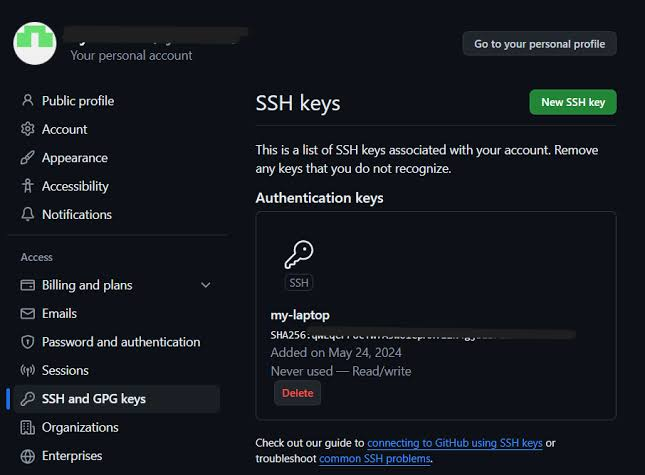
Finally, go to your GitHub account > Settings > SSH and GPG keys > New SSH key, paste your key there, give it a title (like "My Laptop"), and save it!
Dissecting the Magic (What Did You Just Type?)
If you have never used a terminal before, typing those commands can feel like casting a spell in a language you don't understand. Let's break down exactly what you just told your computer to do, word by word.
1. Generating Your Keyssh-keygen -t ed25519 -C "your.email@example.com"
| Command Part | What it means in plain English |
|---|---|
ssh-keygen |
"Hey computer, start the program that creates keys." |
-t |
"I want a specific type of key..." |
ed25519 |
"...and that type is the ultra-secure, modern 'ed25519' model." |
-C |
"Add a Comment (a label) to this key..." |
"your.email..." |
"...and make that label my email address so I know who it belongs to." |
2. Starting the Background Serviceeval "$(ssh-agent -s)"
Think of ssh-agent as a security guard that runs in the background of your computer, holding onto your keys so you don't have to keep typing a password.
| Command Part | What it means in plain English |
|---|---|
ssh-agent |
"Wake up the background security guard." |
-s |
"Give me the setup instructions to connect to this guard." |
$() |
"Capture those setup instructions in the background." |
eval |
"Evaluate (run) those captured instructions right now so the terminal is connected to the guard." |
3. Handing Your Key to the Guardssh-add ~/.ssh/id_ed25519
Now that the guard is awake, you have to actually hand them your new physical key to hold onto.
| Command Part | What it means in plain English |
|---|---|
ssh-add |
"Hey security guard, please add this key to your keychain." |
~ |
A shortcut meaning "My computer's main Home folder." |
/.ssh/ |
The hidden folder where your computer stores secret keys. |
id_ed25519 |
The default file name of the secret, physical key you just generated in Step 1. |
Option 2: PAT (The "Digital Badge" Way)
How it works (The VIP Wristband Example): Think of a PAT like a temporary VIP wristband at an event. Later on, when you try to send your code to GitHub for the first time, your computer will ask for your GitHub password. Instead of typing your real password (which GitHub actually blocks for security reasons!), you simply paste this token. If you ever lose the token, you can instantly cancel it and get a new one without changing your real password.
Pros: Very straightforward; if you ever worry about security, you can instantly delete just that token from your settings.
Cons: Tokens expire (like every 30 or 90 days). When they expire, your code pushes will suddenly fail until you generate a new one.
How to create a PAT:
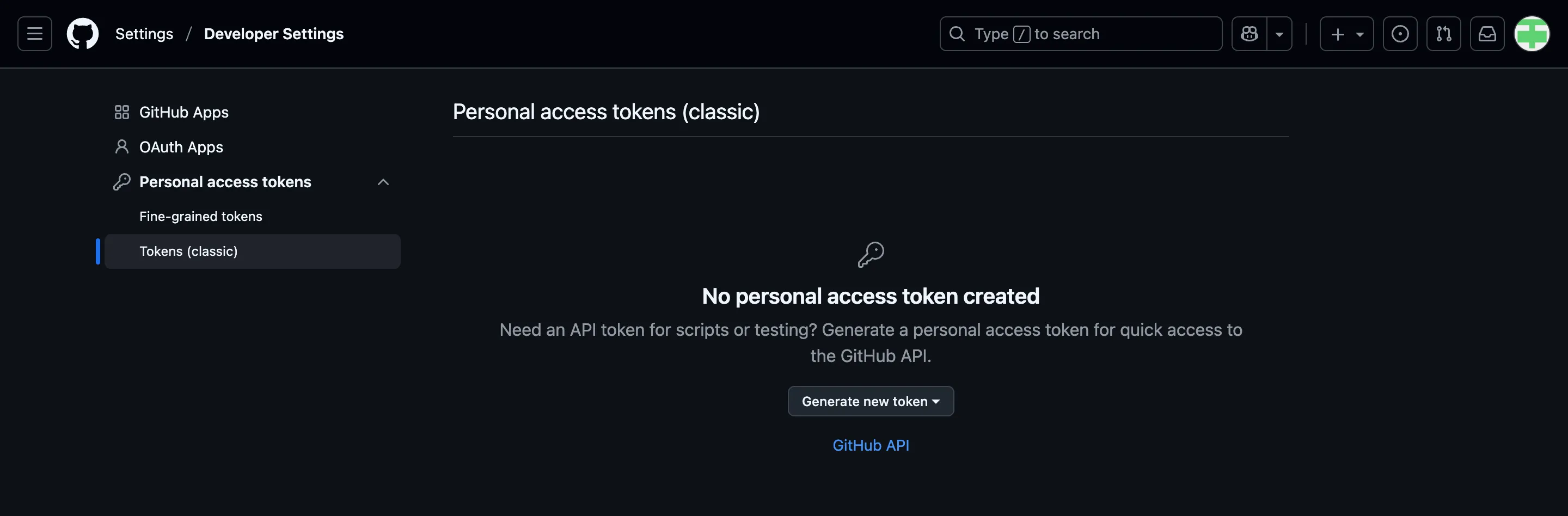
Go to GitHub > Settings > Developer settings > Personal access tokens > Tokens classic.
Click Generate new token, give it a name, choose how long it should last, and check the
repopermission scope so it can manage your code.Click generate, copy the token string, and keep it somewhere safe (GitHub only shows it to you once!). Remember, you will use this token whenever Git asks for your password in the terminal.
Which one should you pick?
Go with SSH if you are on your personal laptop. Almost every developer uses it because you set it up once and never have to worry about passwords again!
Go with a PAT if you prefer a simpler setup or if you are working on a temporary device.
Summary & A Quick Reminder
To wrap up: You have just given your computer a secure, password-free way (SSH) or a VIP digital badge (PAT) to talk to GitHub.
A quick note: If terms like "repository," "HTTPS," or "pushing code" still feel a bit confusing right now—please don't overthink them! We are going to look at all of these dedicatedly in the next part of this series when we actually start using them. For now, just pat yourself on the back. The hardest, most technical part of the setup is officially done!
About the author
- Hi, I'm a software engineer passionate about building robust applications and simplifying complex technical concepts. Beyond writing code, I love sharing my learnings through blogs.
Comments
Join the discussionNo comments yet. Be the first to comment.
Git & GitHub Mastery
Welcome to Git & GitHub Mastery—your ultimate roadmap from version control beginner to confident developer. As software engineers, every line of code we write is an effort to solve a problem. But without proper documentation and version control, that effort gets lost in the past. In this series, we break down essential developer tools using real-world analogies, practical workflows, and step-by-step guides. Whether you're writing your very first commit or managing multi-developer projects, this series will help you move from chaos to total control. Join me as we build better habits, protect our code, and level up our engineering journey together!