Going Live: How to Push Your Local Code to GitHub (`git push` & Remote Syncing)
Welcome back to our Git and GitHub series!
In our previous posts, we learned how to set up our environment, curate changes with git add, lock in snapshots with git commit, and safely undo local mistakes using git reset.
Right now, your code is clean, committed, and sitting safely on your computer. But there is still one big problem: nobody else can see it. If your laptop crashes today, your project history disappears with it, and your teammates on GitHub are still staring at an empty repository.
Today, we are going to bridge the gap between your computer and the cloud by mastering git push and understanding how local and online repositories actually talk to each other.
1. Local vs. Remote: Two Separate Worlds
Before we dive in, let’s clear up a fancy word you hear all the time: Repository (or "Repo"). A repository is nothing more than just a project folder in the language of Git. When Git is tracking a folder, we call it a repository!
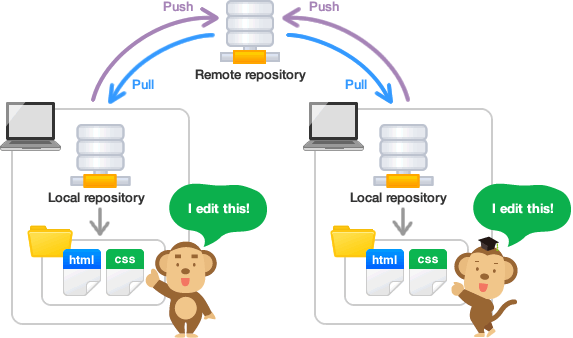
When you work with Git and GitHub, your project folder actually lives in two completely separate places:
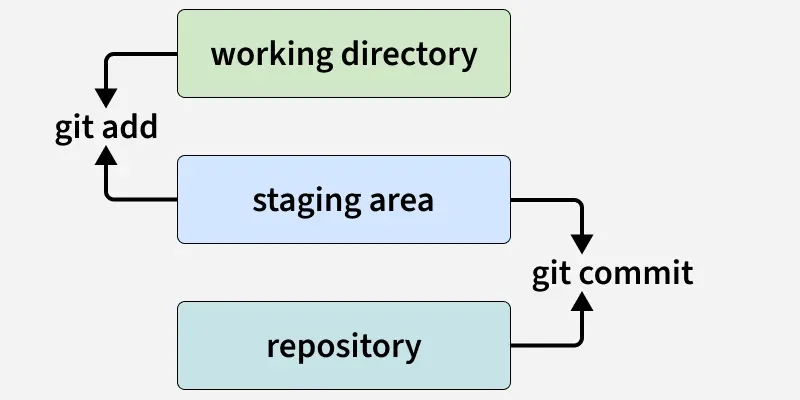
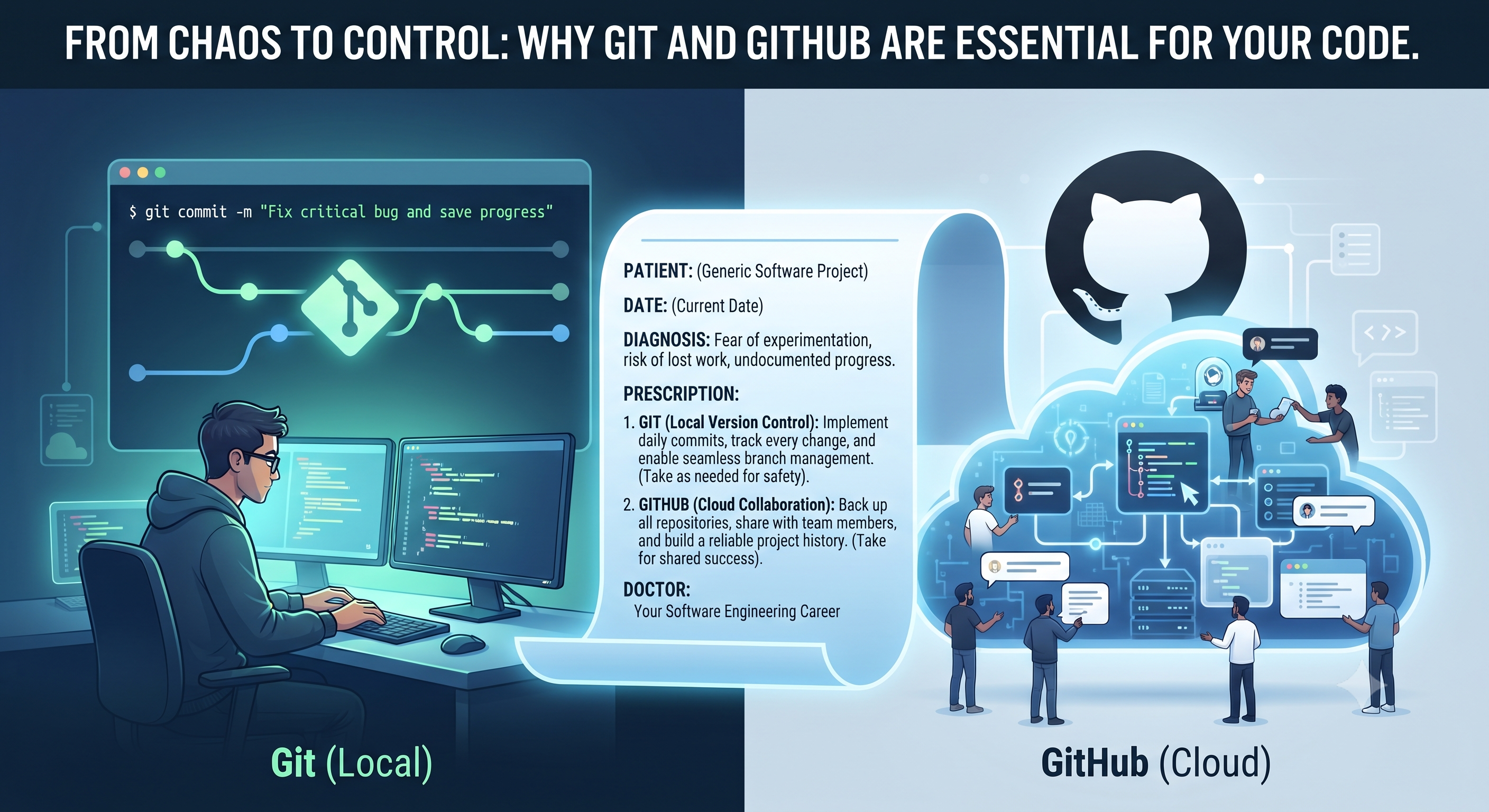
- Your Local Repository: The project folder on your computer where you write code, stage files, and create commits. It works completely offline.
- Your Remote Repository (GitHub): The online version of your project folder hosted on GitHub's servers, where your team collaborates and backs up the codebase.
Because they are separate, making a git commit on your laptop does not automatically update GitHub. You have to manually tell Git to upload your saved commits to the cloud.
What do origin and main actually mean?
Before we run the upload command, you are going to see two words pop up constantly in Git: origin and main. Let's strip away the mystery:
origin: When we linked our folder to GitHub earlier usinggit remote add origin <URL>, we gave that long, annoying GitHub URL a short nickname. That nickname isorigin. Whenever you typeorigin, you are simply saying: "My online GitHub repository."main: Git organises your timeline of commits into tracks called branches (which we will explore deeply in our upcoming branching blog!). By default, the primary track where your project starts is namedmain.
2. Sending Your Code to the Cloud (git push)
Once you have committed your work locally (git commit -m "feat: initial project setup"), it is time to upload those commits to GitHub.
Scenario A: Your Very First Push on a New Project
When you push to a brand-new GitHub repository for the very first time, your local track (main) doesn't know which online track it belongs to yet. You have to link them together:
- The Command:
git push -u origin main - What it does:
git pushtells Git to upload your commits.origintells it where to upload them (your GitHub URL).maintells it which track of commits you are uploading.-u(short for--set-upstream) tells Git: "Remember this connection for next time so I don't have to type the whole thing again."
Scenario B: Every Push After That (Your Daily Workflow)
Because you used -u the first time, Git now remembers the link between your local folder and your GitHub repository. From now on, whenever you commit new changes and want to upload them, you simply run:
- The Command:
git push - What it does: Automatically uploads all your newest local commits straight to GitHub.
3. Checking the Cloud Without Touching Your Code (git fetch)
When you are working on a team, your teammates are also running git push from their own computers. That means the online GitHub repository is constantly getting updated while you are working locally.
What if you want to check if your teammates have uploaded new code to GitHub, without immediately merging their changes into your working files?
- The Command:
git fetch - What it does: It reaches out to GitHub (
origin) and downloads all the latest history updates so you can inspect what changed, without altering a single line of the code you are currently typing. - Why it is safe: Unlike
git pull(which downloads and immediately combines new code into your local files),git fetchlets you look before you leap. After runninggit fetch, you can rungit statusto see if your local project is behind the online repository.
Understand the Difference: When to run git fetch vs. git pull
It is easy to mix these two up, and doing so is a common source of beginner headaches. Here is a simple breakdown to help you pick the right command every time:
| Action | git fetch (The Safe Check) |
git pull (The Big Sync) |
|---|---|---|
| What does it do? | Downloads the latest history and changes from GitHub to your computer, but does not modify any of your actual project files. | Downloads the latest changes from GitHub and immediately merges (combines) them straight into the files you are working on. |
| When to use it: | Use it when you are in the middle of writing code and want to safely see if your teammates have pushed updates without disrupting your current work. It is also a great first step if you are about to start pushing your own work and want to check if you are "behind" the remote version. | Use it when you have a clean workspace (no unsaved or uncommitted work) and are ready to merge your teammates' newest features directly into your project files before you start writing something new. |
| Risk Level: | 100% Safe. There is zero chance of breaking your local code or creating complicated conflicts, because Git doesn't change your active code files. | Caution needed. If you have unsaved changes or if you and a teammate edited the same line of the same file, Git will pause and ask you to fix "merge conflicts" right then and there. Only run it when you're ready to integrate changes. |
4. Common git push Errors (And Why They Happen)
As we always say in this series: making mistakes and hitting terminal errors is the best way to learn Git. Here are the two most common errors you will hit when pushing, and how to fix them quickly:
Error 1: src refspec main does not match any
- Why it happens: You tried to run
git pushright aftergit initandgit add, but you forgot to rungit commit. Remember,git pushonly uploads commits, not staged or working files! If there is no commit receipt yet, there is nothing for Git to push. - The Fix: Run
git commit -m "feat: initial commit"first, and then rungit push -u origin main.
Error 2: [rejected] main -> main (fetch first)
- Why it happens: A teammate pushed new code to GitHub after you last updated your folder. Git blocks your push to stop you from accidentally overwriting your teammate's online work.
- The Fix: You need to bring their latest changes down to your computer first before Git will let you upload yours. Run:
git pull origin main(orgit pull --rebase origin mainto keep your commit history in a clean straight line), and once your files are combined, rungit pushagain! - ⚠️ Watch out for Merge Conflicts: Pulling code can also trigger a merge conflict when more than one developer is working on a project and changing the exact same lines in the same file. Because Git doesn't know which developer's code is the "correct" one to keep, it pauses the merge, flags the conflict, and gives you the chance to finalize the code yourself. (Don't worry—we will learn step-by-step how to resolve merge conflicts in a dedicated upcoming blog!)
What’s Next?
So far in this series, we have learned how to set up our development environment, create repositories on GitHub, initialize local projects, curate files with git add, save clean snapshots with git commit, undo mistakes with git reset, and upload our work to the cloud with git push!
In our next blog post, we will dive into one of the most important questions in team software engineering: How do we safely bring our teammates' code into our local machine (git pull vs. git merge vs. git rebase), and how do we actually resolve merge conflicts without losing our minds?
Stay tuned, keep breaking things, and happy coding!
About the author
- Hi, I'm a software engineer passionate about building robust applications and simplifying complex technical concepts. Beyond writing code, I love sharing my learnings through blogs.
Comments
Join the discussionNo comments yet. Be the first to comment.
Git & GitHub Mastery
Welcome to Git & GitHub Mastery—your ultimate roadmap from version control beginner to confident developer. As software engineers, every line of code we write is an effort to solve a problem. But without proper documentation and version control, that effort gets lost in the past. In this series, we break down essential developer tools using real-world analogies, practical workflows, and step-by-step guides. Whether you're writing your very first commit or managing multi-developer projects, this series will help you move from chaos to total control. Join me as we build better habits, protect our code, and level up our engineering journey together!